PIXEL STUDIO

PHOTOS → PIXELS → POSSIBILITIES

MAKE ITA LITTLE MOREPIXEL.

Turn any photo into retro art — and a pattern you can make by hand.
  • Browser-based
  • No signup
  • No watermark
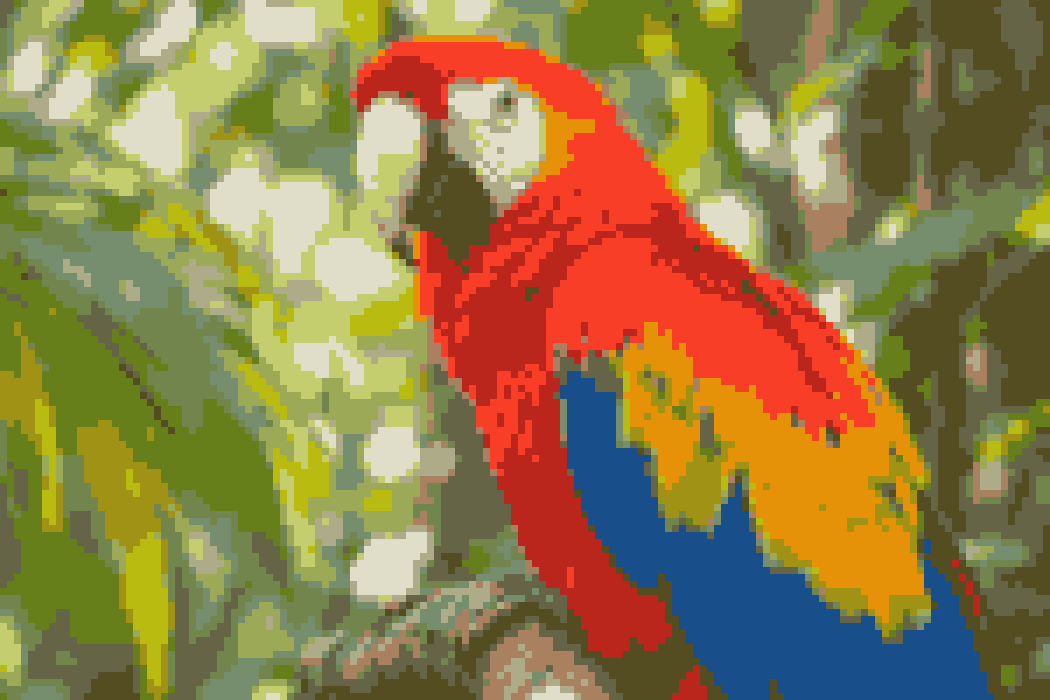
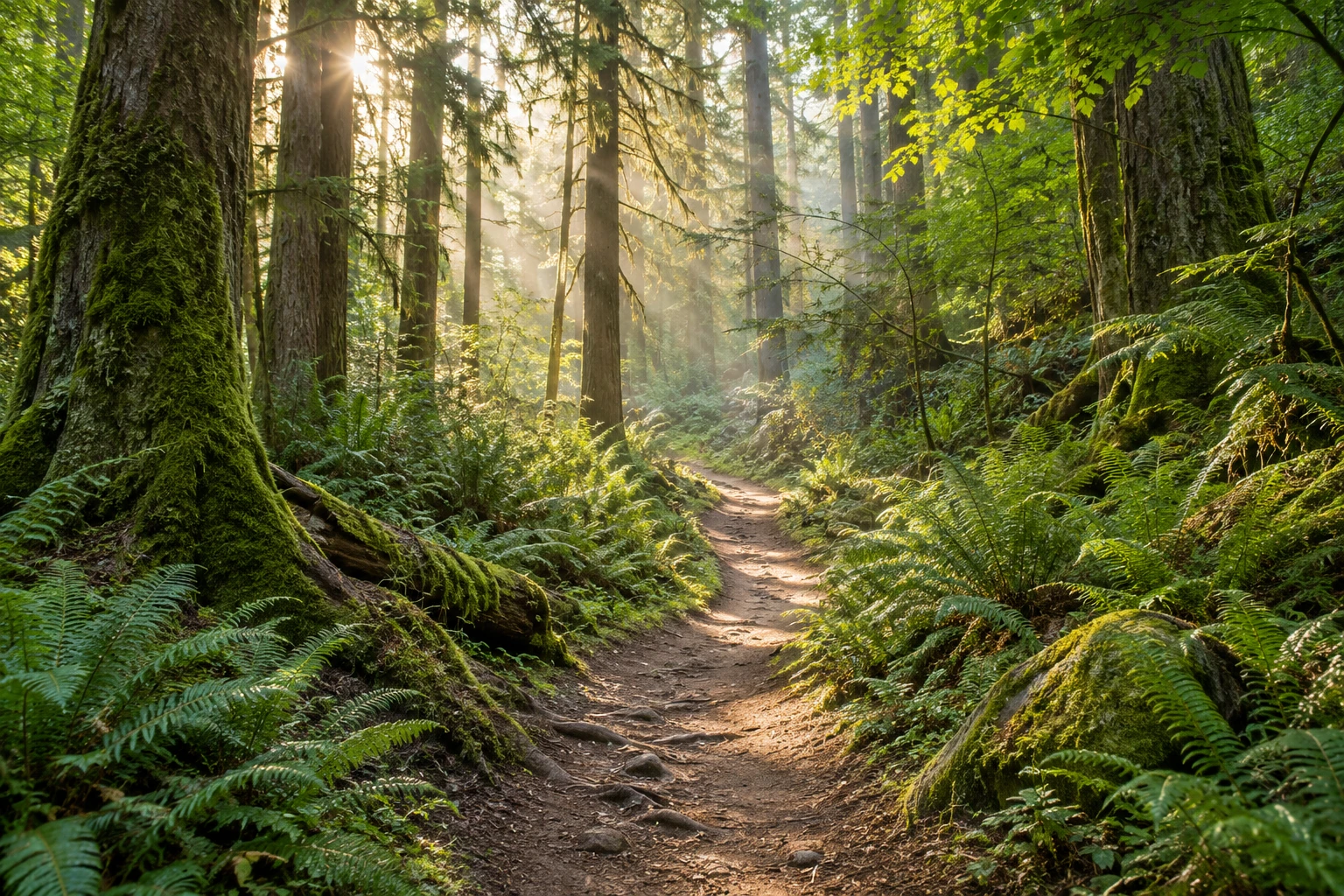
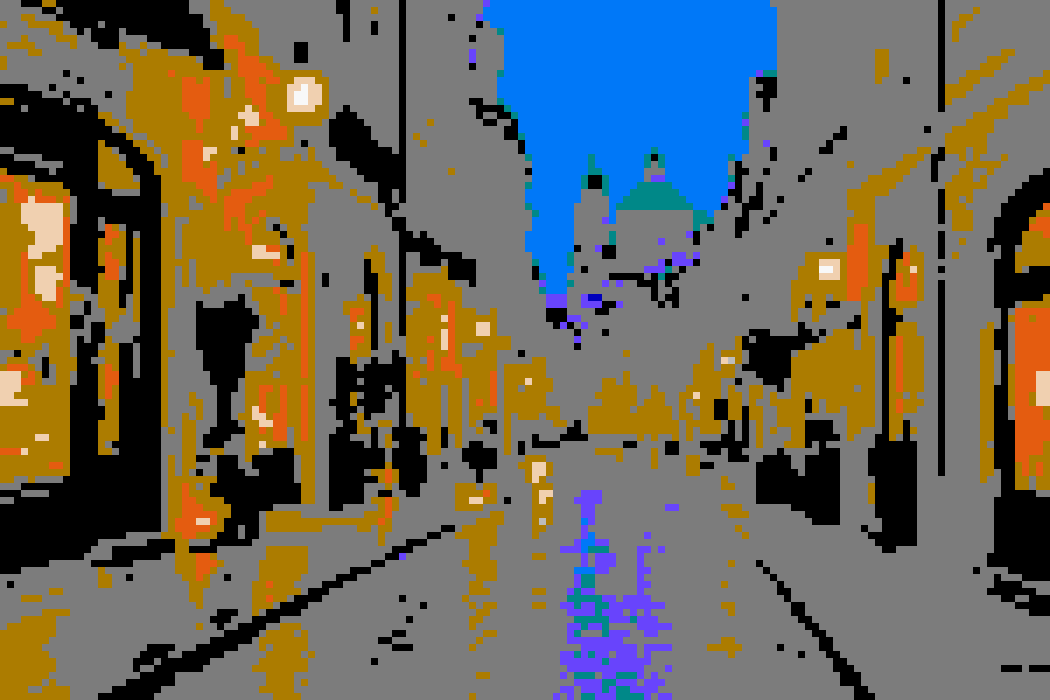
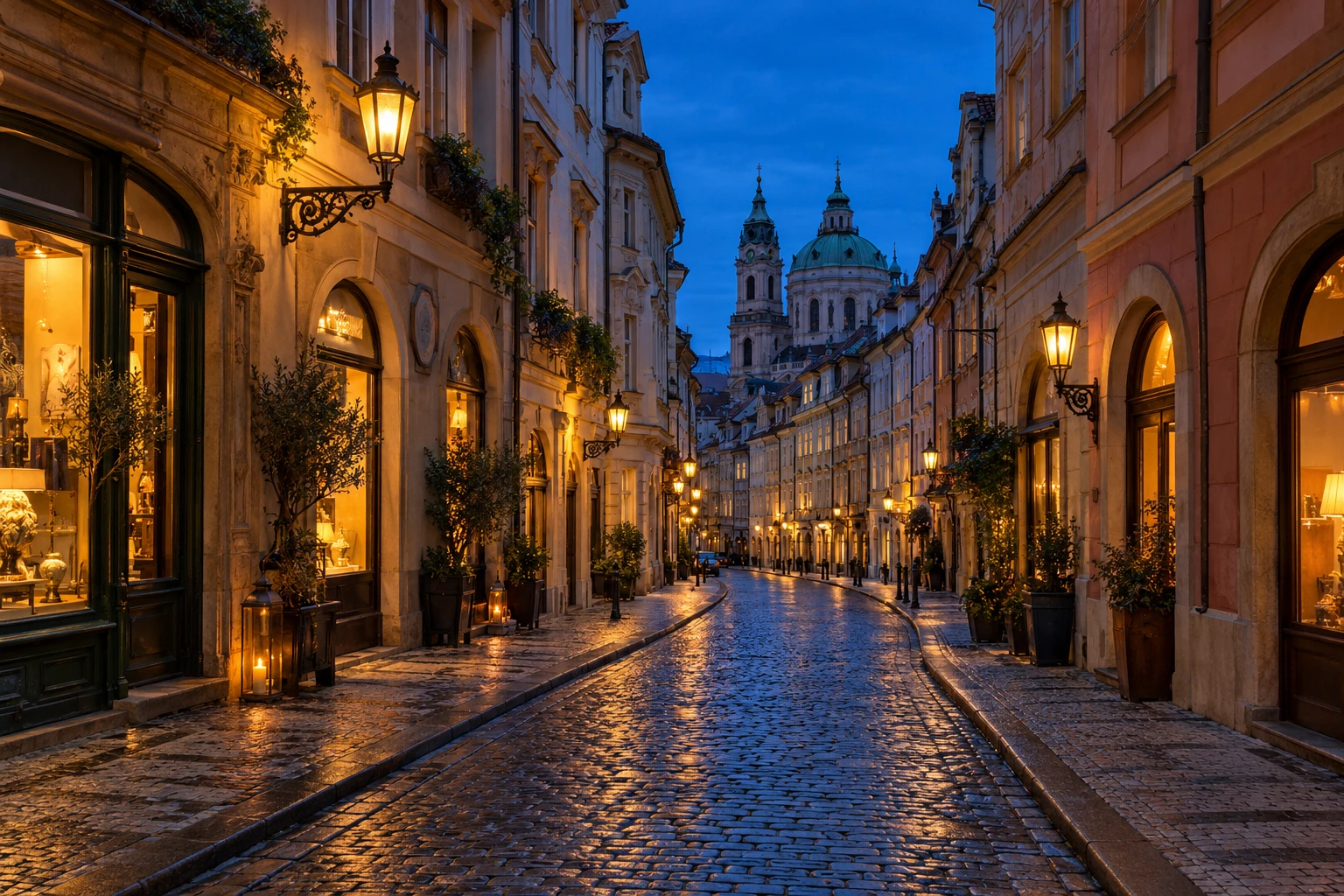
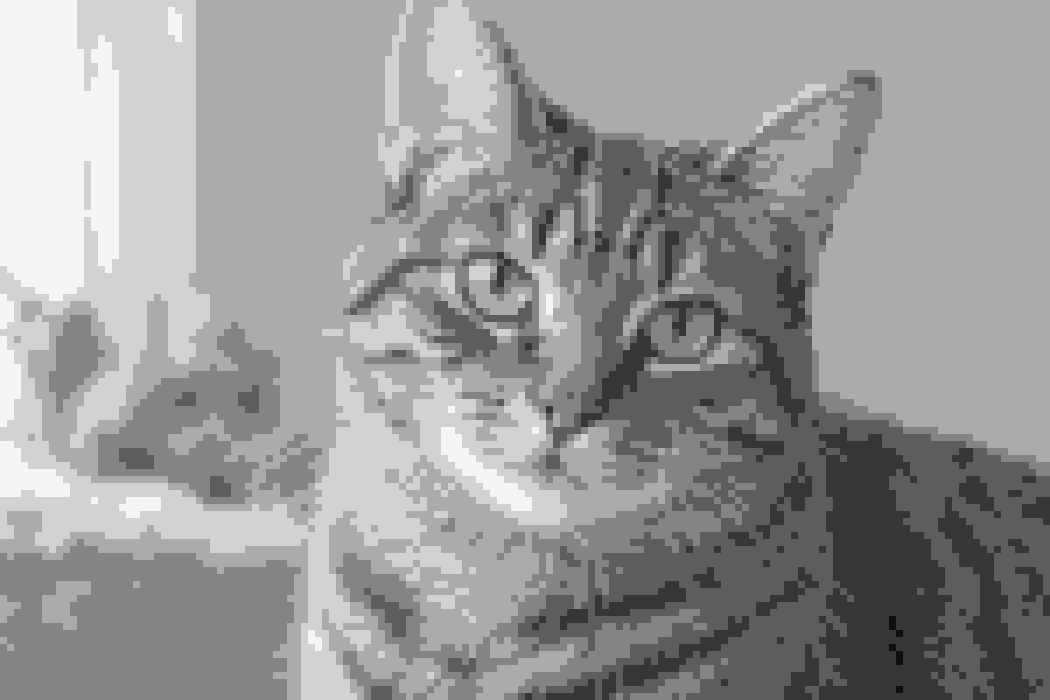
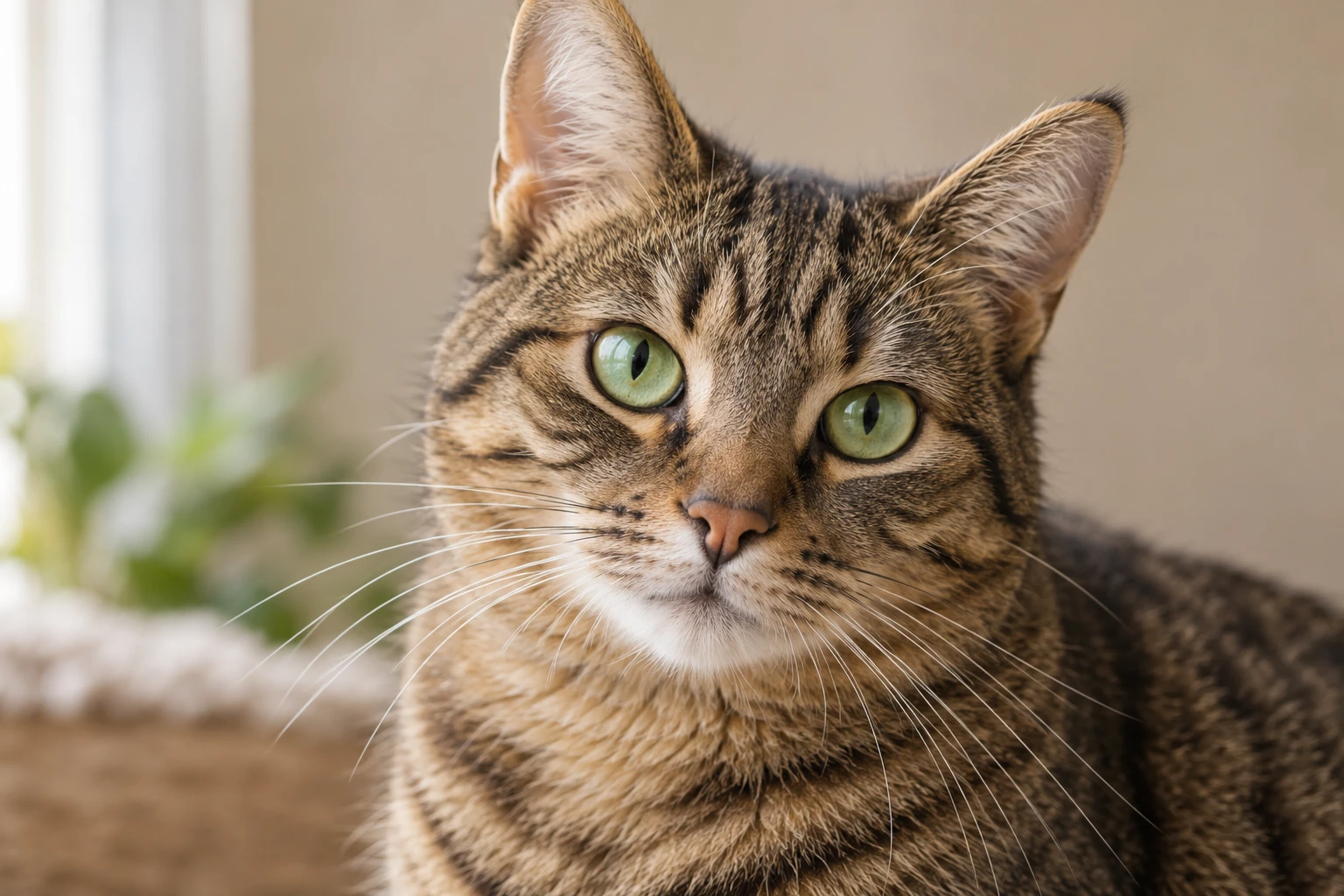
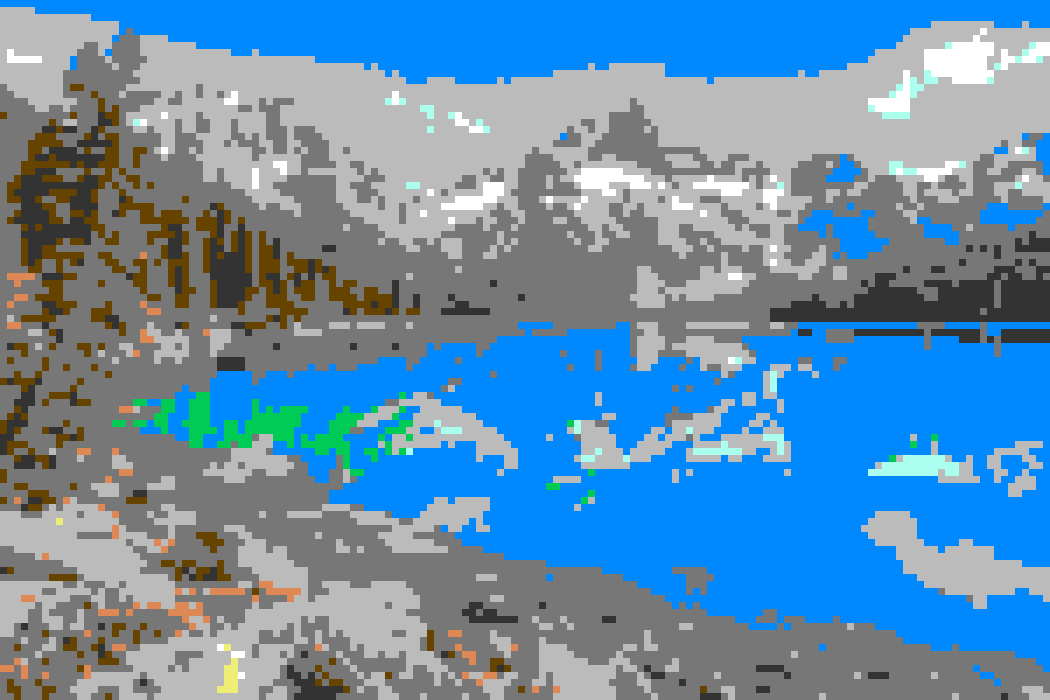
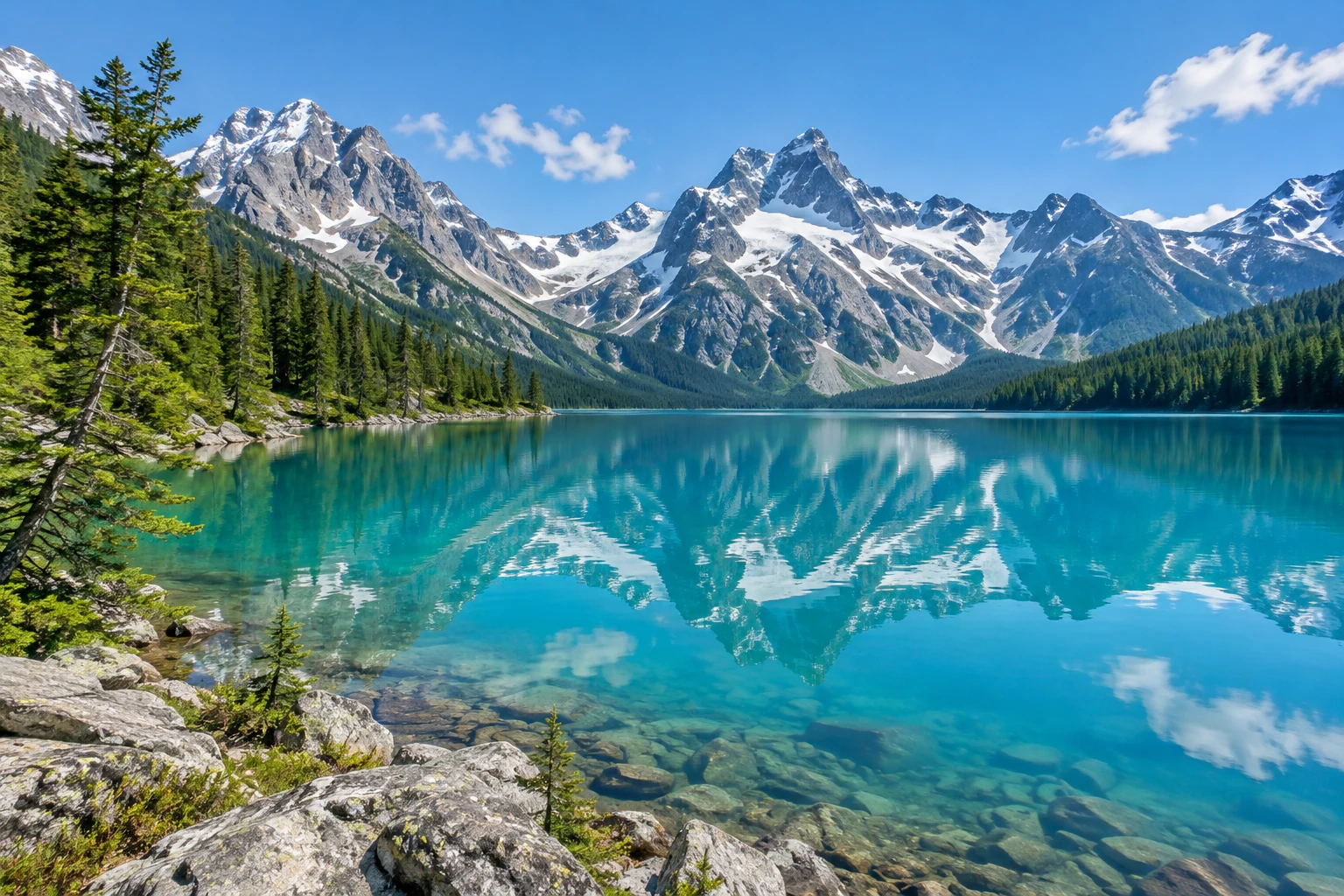
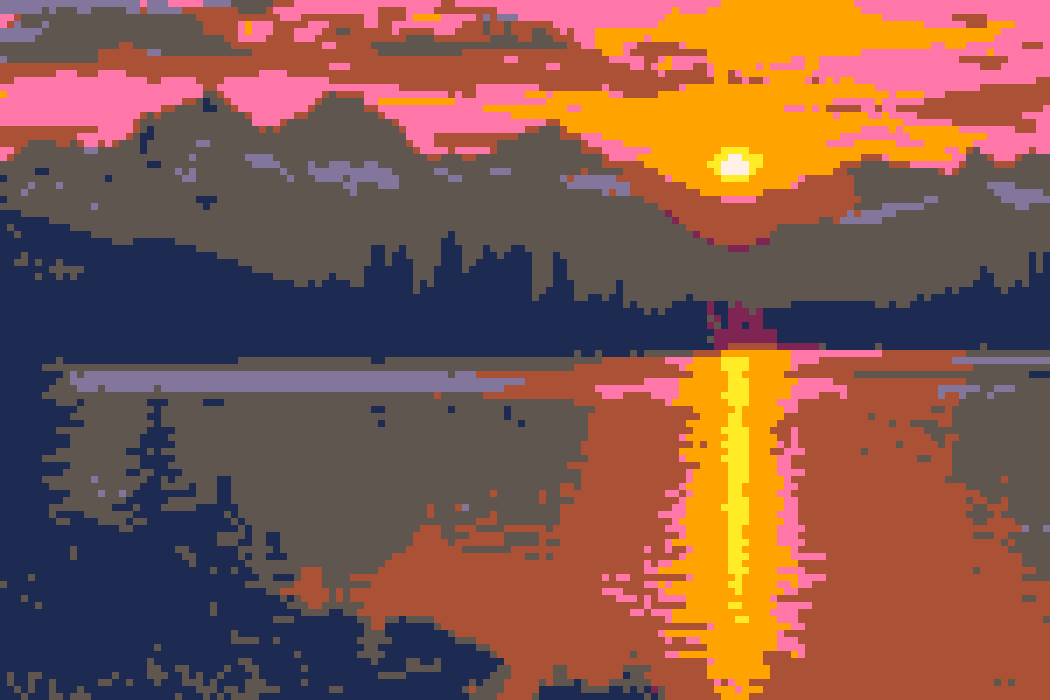
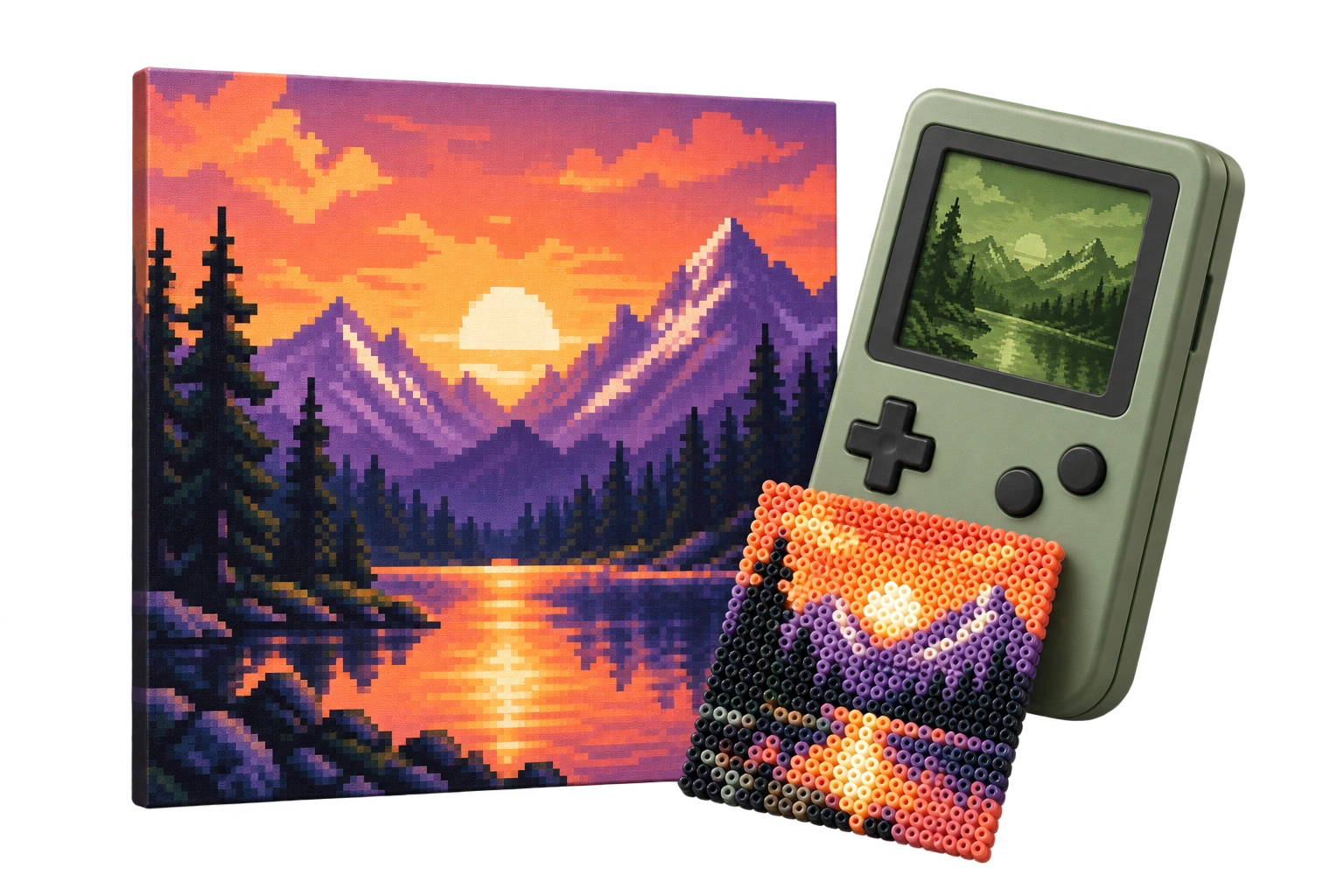
Pixel sunset, retro handheld and a handmade bead pattern
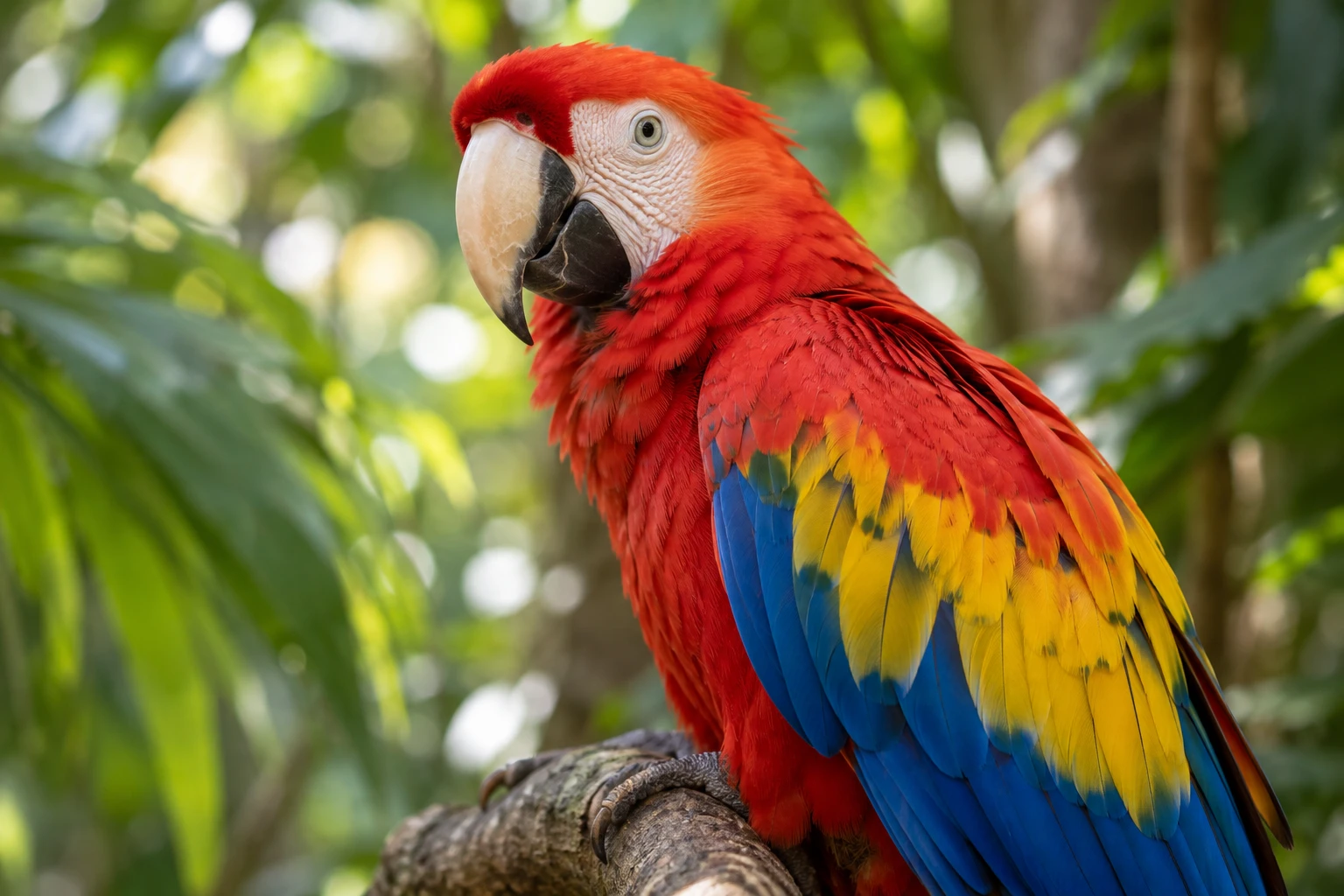
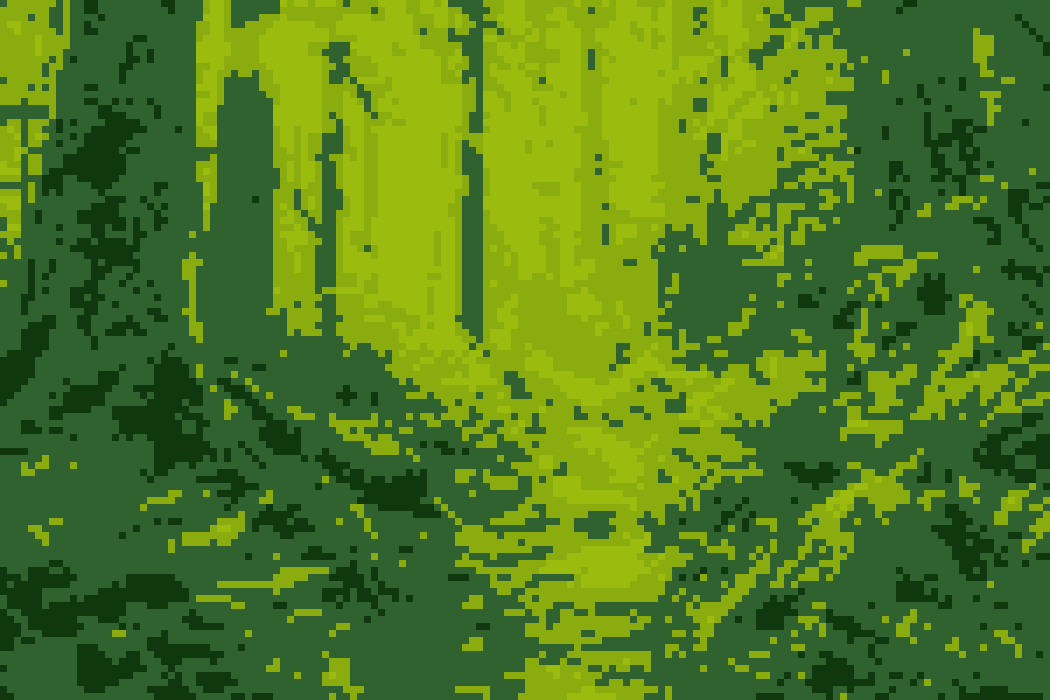
SAME PHOTO. DIFFERENT VIBES.

YOUR PIXEL WORKSPACE

One photo. Every pixel, your way.

Live preview

Choose an image to start.

Upload, drop a file, or paste with Ctrl/Cmd+V.

FROM PIXELS TO SOMETHING REAL.

Each number maps to a palette color.

Numbered pattern

Color Key

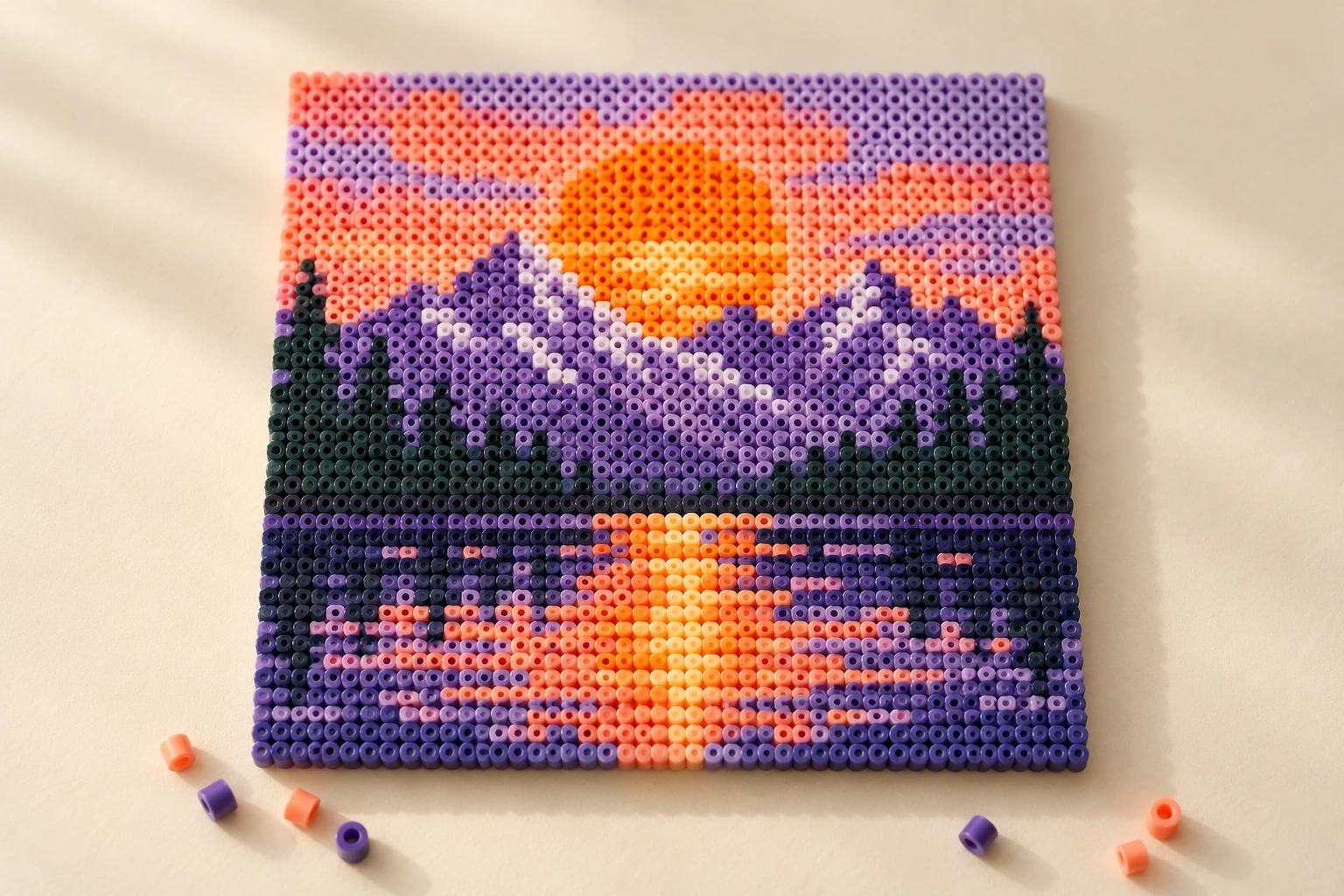
Handmade sunset bead pattern
One square. One bead. One stitch.
Craft inspiration
Get these files:

Transparent images are composited on white. Static GIF frame only.

ART MEETS CRAFT

SMALL PIXELS. BIG POSSIBILITIES.

Avatars & emotes

Avatars & emotes

Pixel portraits for profiles, stickers and stream badges.

Wallpapers

Wallpapers

Make a favorite view feel like a retro world.

Perler & Hama beads

Perler & Hama beads

Use one numbered square for every bead.
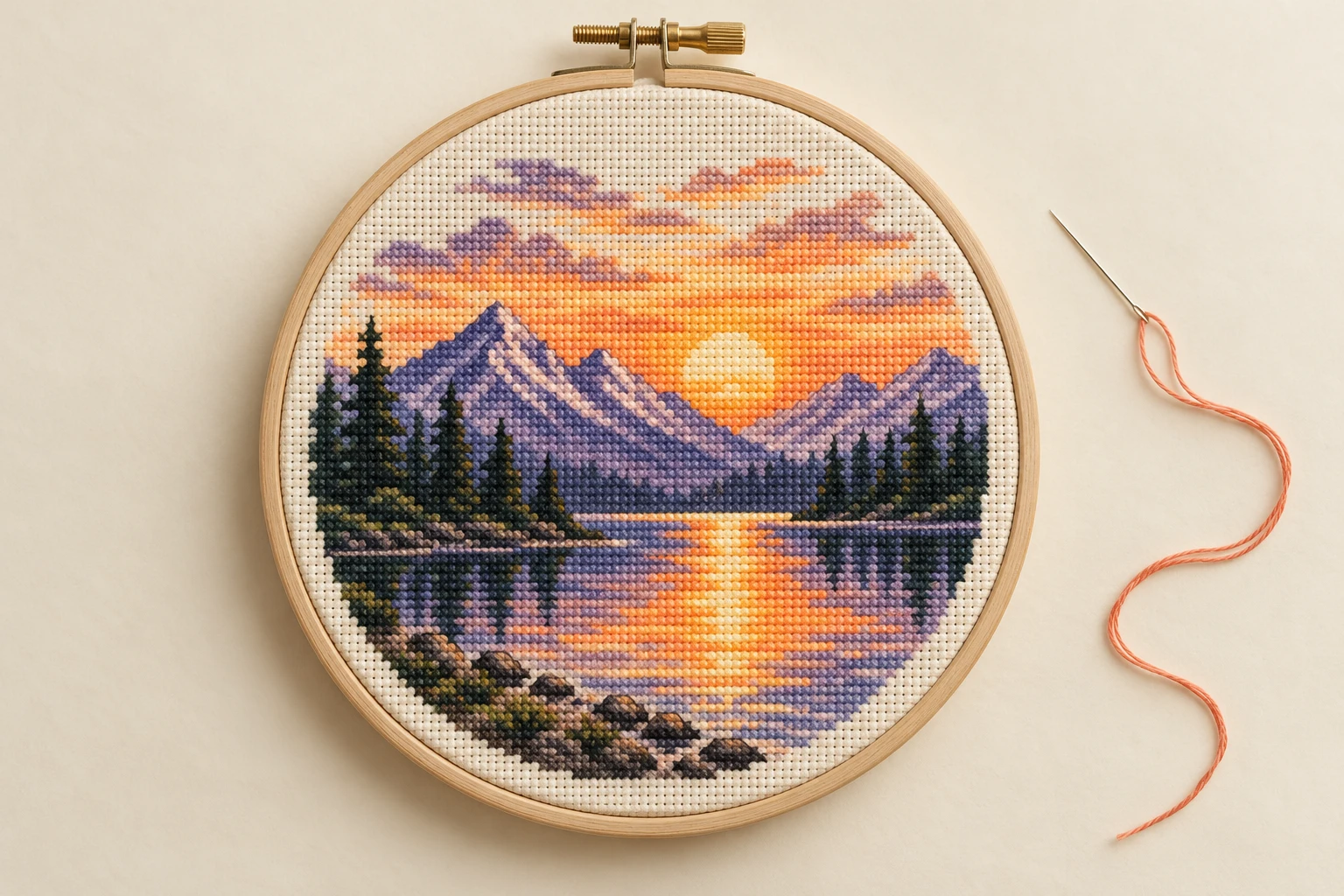
Cross-stitch

Cross-stitch

Create a chart you can stitch by hand.

Framed prints

Framed prints

Turn a memorable photo into a personal gift.
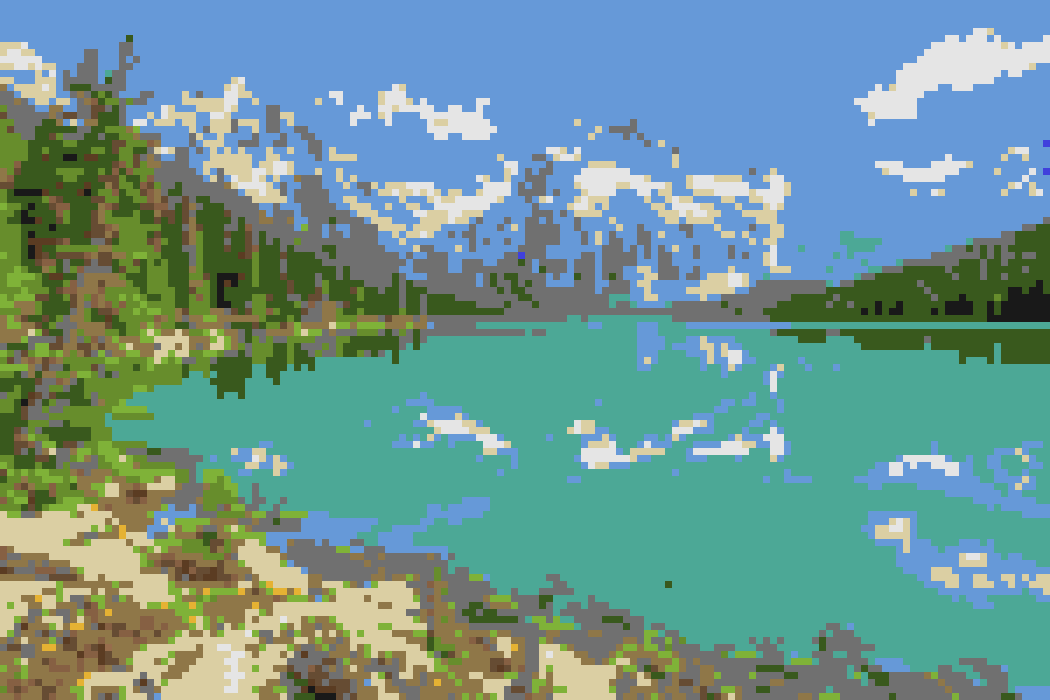
Game & block builds

Game & block builds

Plan sprites, tiles and Minecraft pixel builds.

FIVE SIMPLE STEPS

HOW IT WORKS

From photo to pixels — then from pixels to something you can make.

  1. 01

    Add your photo

    Upload, drop a file, or paste with Ctrl/Cmd+V.

  2. 02

    Set pixel size

    Keep detail with small blocks; go bold with larger ones.

  3. 03

    Choose a palette

    Use Auto or explore six retro color styles.

  4. 04

    Build a pattern

    Enable the numbered guide and choose your color count.

  5. 05

    Export your creation

    Save PNG, Guide PNG, or ZIP with the palette readme.

QUICK ANSWERS

A FEW THINGS YOU MIGHT BE WONDERING.

Pixel art, privacy, exports and making things by hand.

Artwork built from a small grid and a limited palette. We map each block to a color and enlarge it with crisp edges.
Add an image, set pixel size, choose a palette and adjust brightness, contrast or saturation. Compare the result, then export PNG.
No. The preview and PNG use nearest-neighbor scaling to keep every pixel edge crisp.
Yes. Pick Game Boy, Minecraft, Pico-8, NES, C64 or Mono, or use Auto to extract colors from your image.
Your image stays on your device. Conversion, adjustments, previews and exports all run inside your browser.
Free to use, with no signup, watermark or download limit.
PNG, JPG, WebP and GIF up to 25 MiB. Animated GIFs use a single still frame; transparent areas are placed on white.
Use the Minecraft palette as a block-color reference. The numbered guide helps you rebuild the image one square at a time.
Yes. Choose a camera-roll photo in a modern browser, adjust the preview and save the PNG or ZIP to your device.
Start around 2. Smaller blocks keep more detail; larger blocks make a chunkier image. Fixed 32 or 64 grids control the size for crafts.
Yes. Use a clear portrait, choose a bold palette and export PNG for profile pictures, emotes or stream badges.
A printable grid whose numbers match the color key. Enable the guide to see the pattern and export a separate Guide PNG.
Auto offers 8, 12, 16, 24 or 32 colors; an image may need fewer. Retro palettes keep their fixed color sets.
pixel-art.png, numbered-guide.png and readme.txt with palette indices, HEX and RGB values.
Yes. Choose a practical grid and 8–12 Auto colors, then print the numbered guide. Match the palette to your actual beads or thread.

Your next idea starts with one photo.

Art for your screen. Patterns for your hands.

Open the studio